How to read with Beletria
Eight screens, in the order you will meet them. The whole thing takes a minute to learn and a book to master.
- Step 1
Try a book, then sign in
You can start without an account. Open any book on the shelf and read its first 20 sentences as a guest, with everything described below: translations, explanations, every word and the audio. Saving words and rating the explanations wait for an account, and the app asks you to sign in when the preview ends.
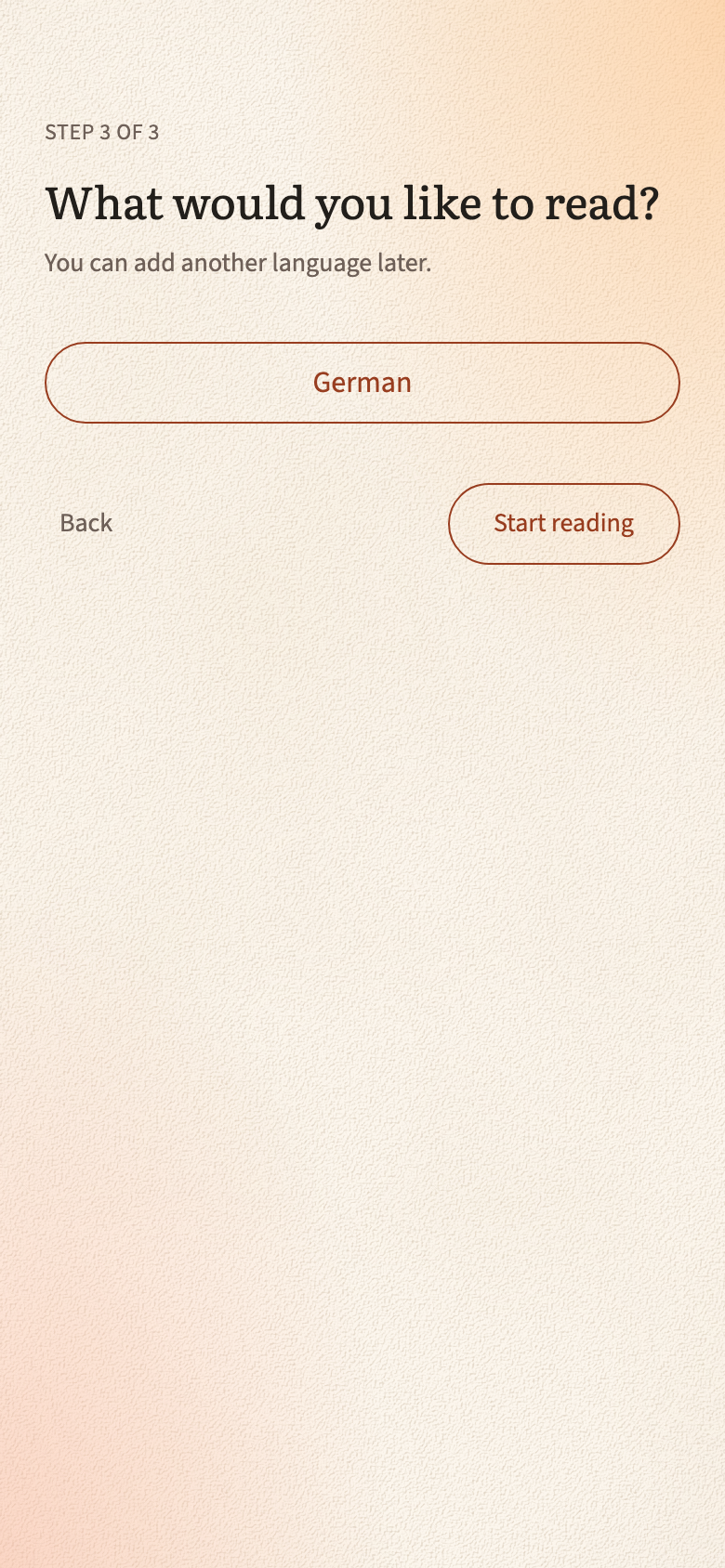
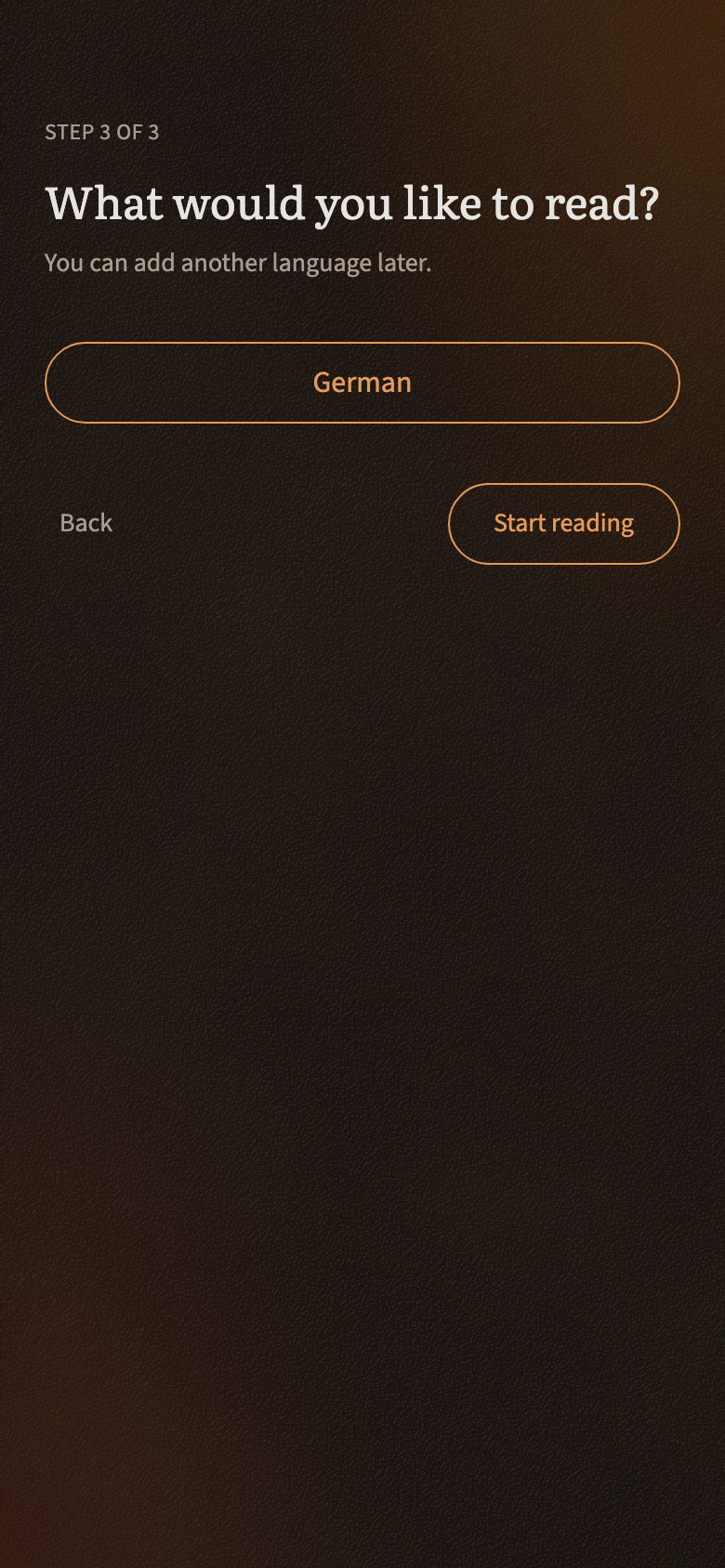
Sign in with Google, and you carry on from the sentence you reached. Setup is three short screens: what to call you, which language things are explained in (English, for now), and which language you want to read. Nothing asks for your level; the shelf shows each book’s level instead, and you start wherever you like.
You can change the name later and add another reading language when there is one.
- Step 2
Choose a book from the shelf
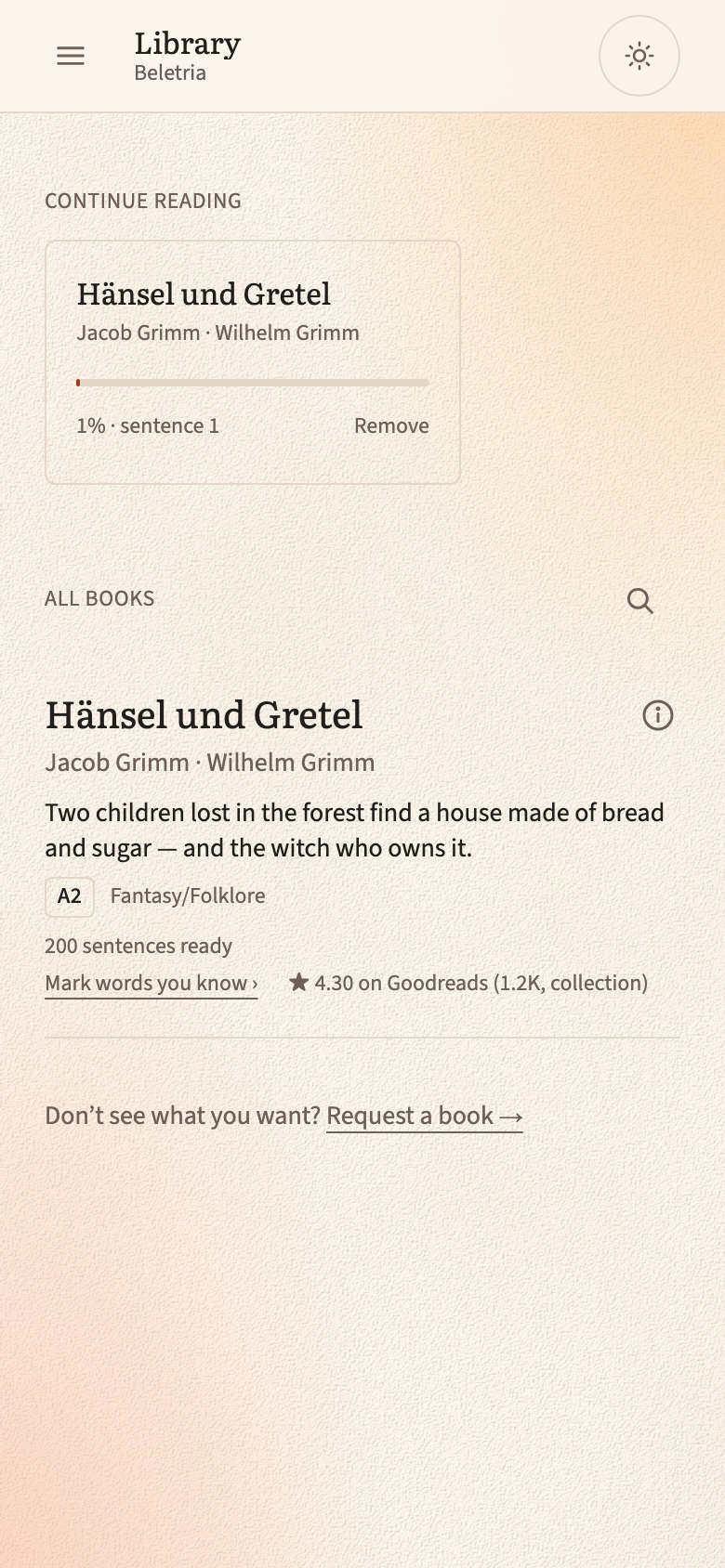
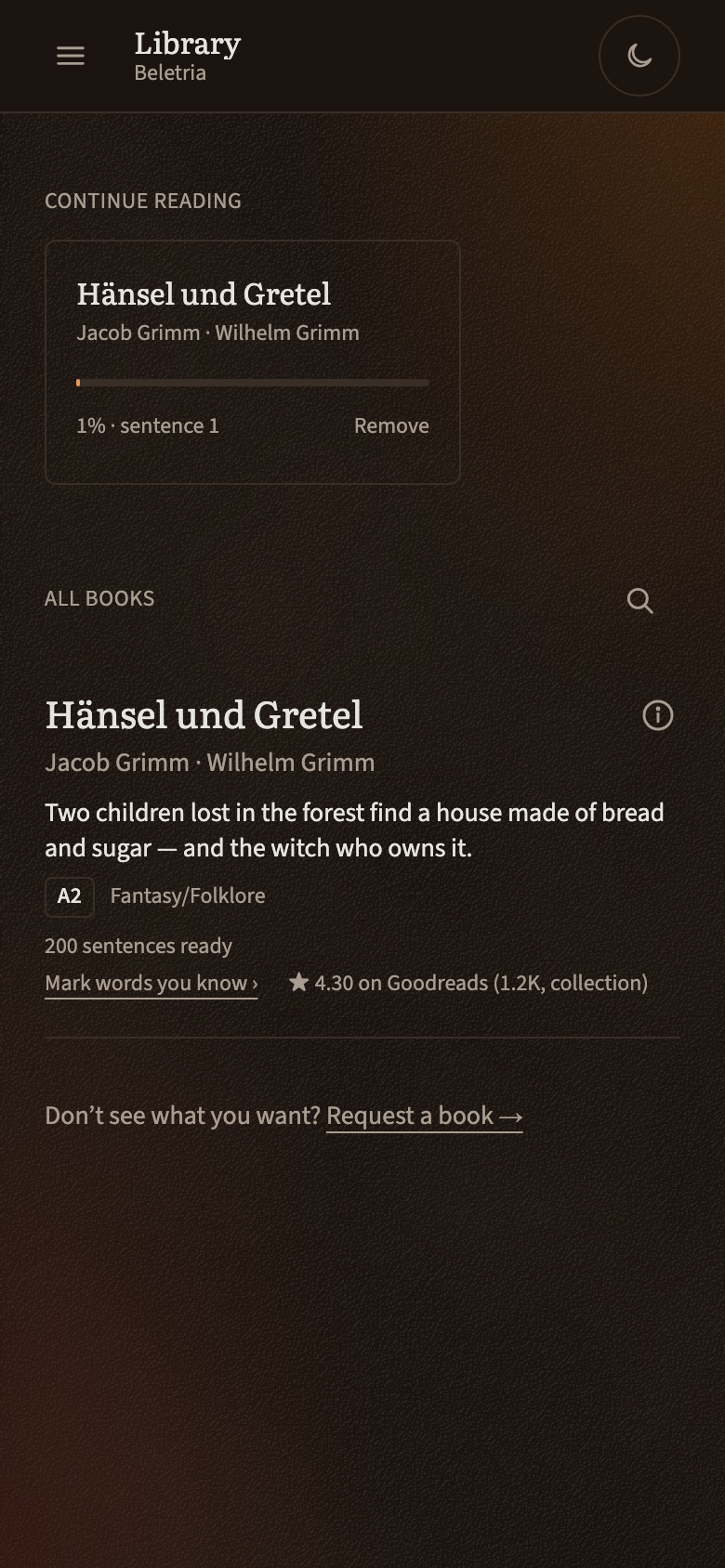
Every book shows a line about it, its CEFR level, from A1 to C2, its genre, and how many sentences are ready to read. The fairy tales sit at A2; the hardest novels, such as Der Golem and Fosca, are C1. Books you have started wait at the top under Continue reading, with your place in them.
The Goodreads rating under each book links to its page there. A single fairy tale rarely has a page of its own, so its rating is often the collection’s, and the shelf says so.
Each book also has a link to check off the words you already know in it. Once you have checked off enough, the shelf shows what share of each text you can already read, and the share grows as you learn.
If the book you want is not there, the request form at the bottom of the shelf is where the next titles come from.
- Step 3
Find out about a book
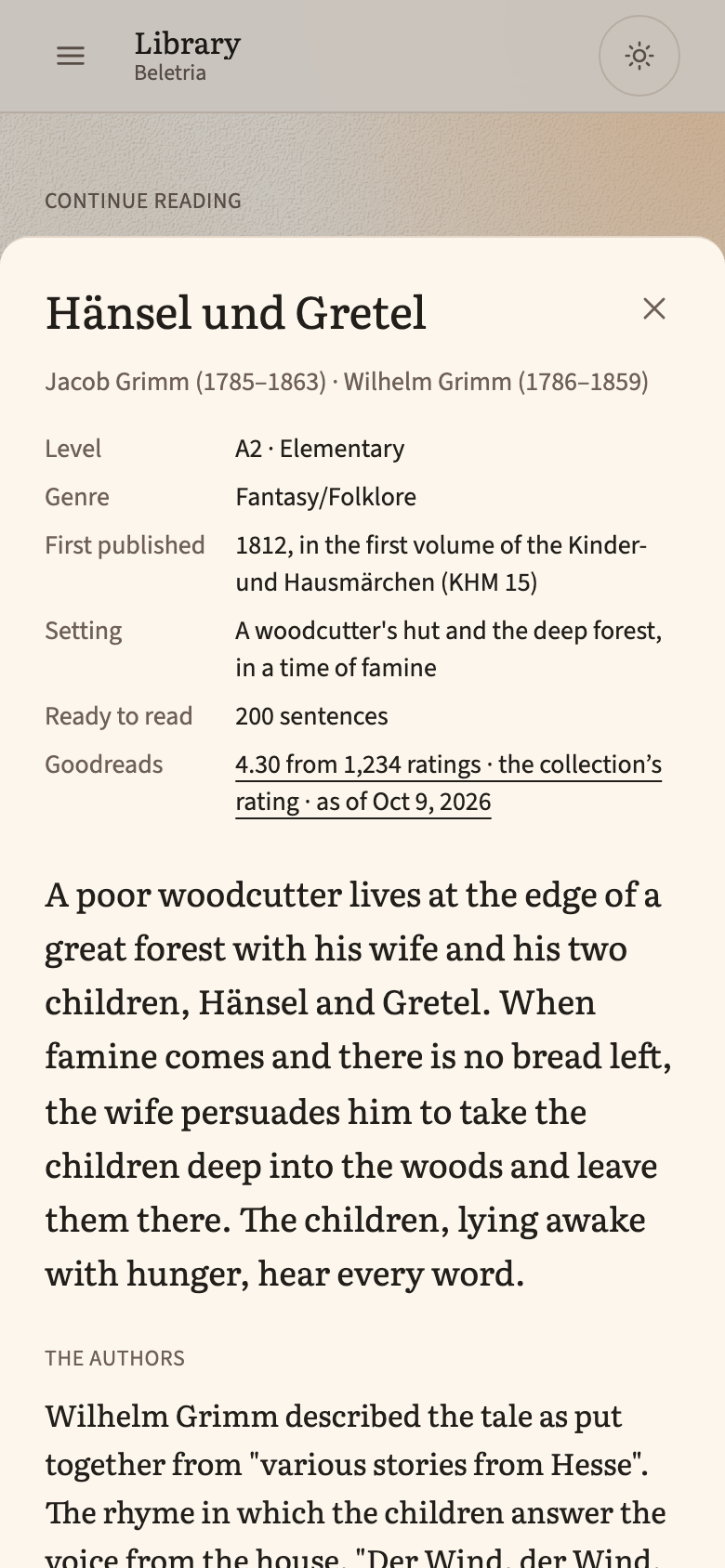
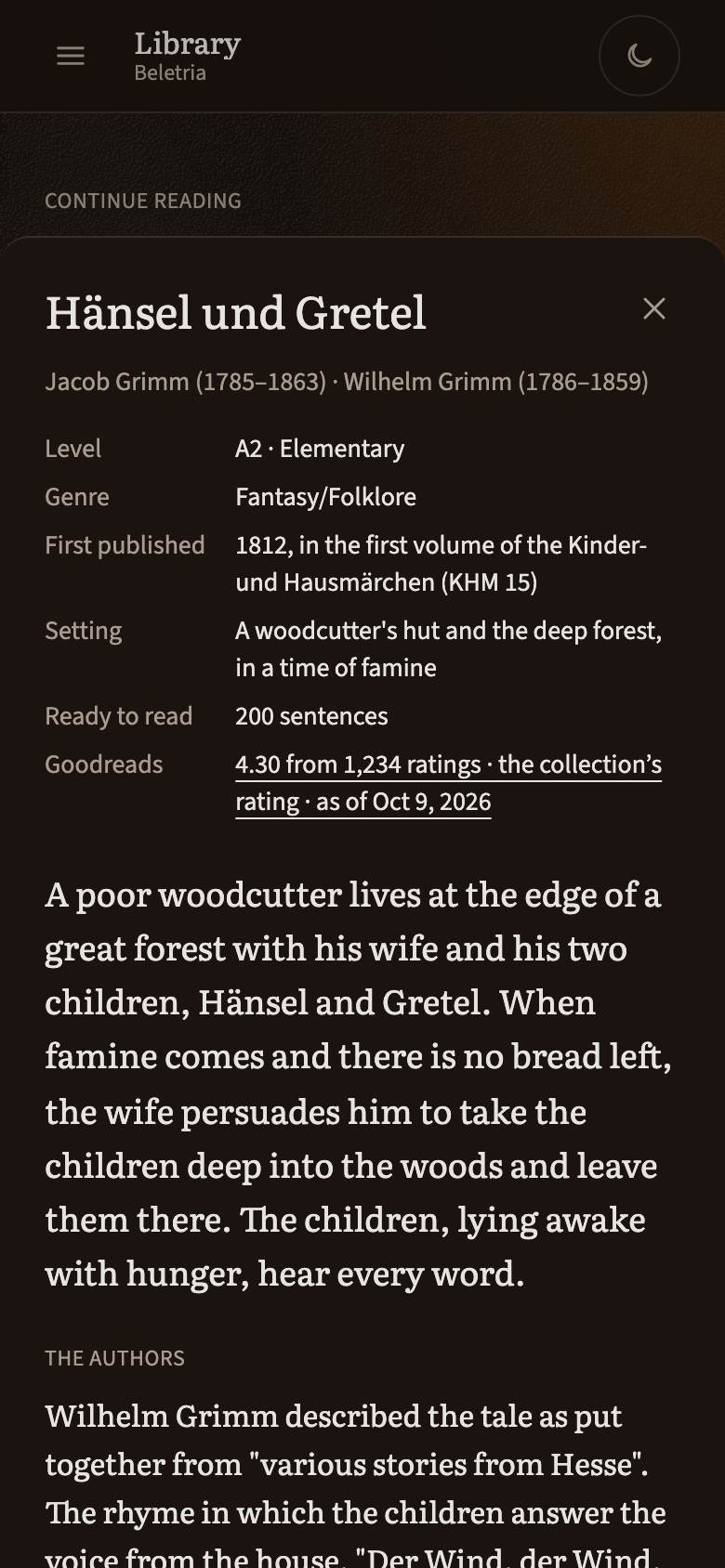
The ⓘ beside each book opens a page about it: what the story is about, without spoilers, when it first appeared and where it is set, then the author, the book’s place in its time, what its language is like for a learner, and well-known adaptations.
Every page ends with where the text comes from and its licence. The same page opens from inside a book: tap its title at the top.
- Step 4
Read one sentence at a time
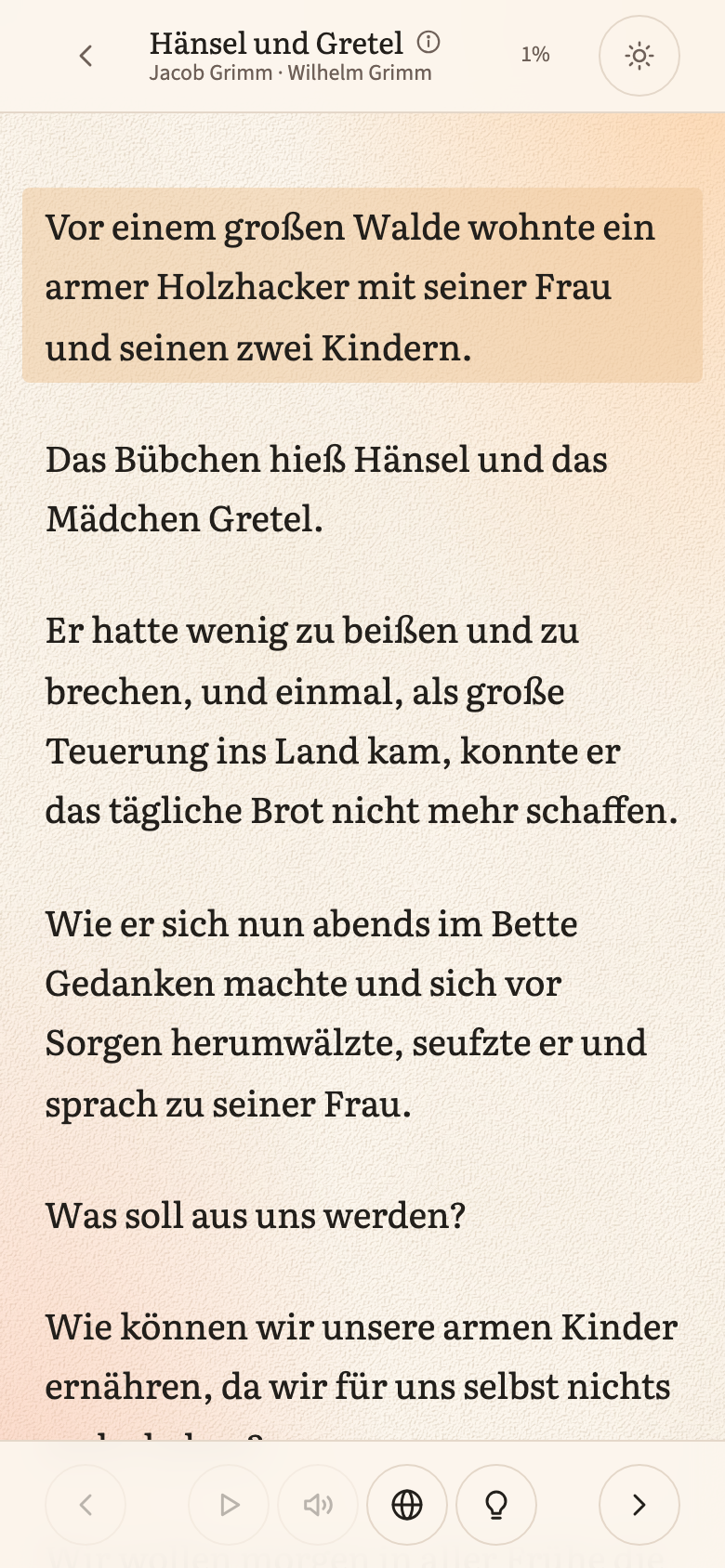
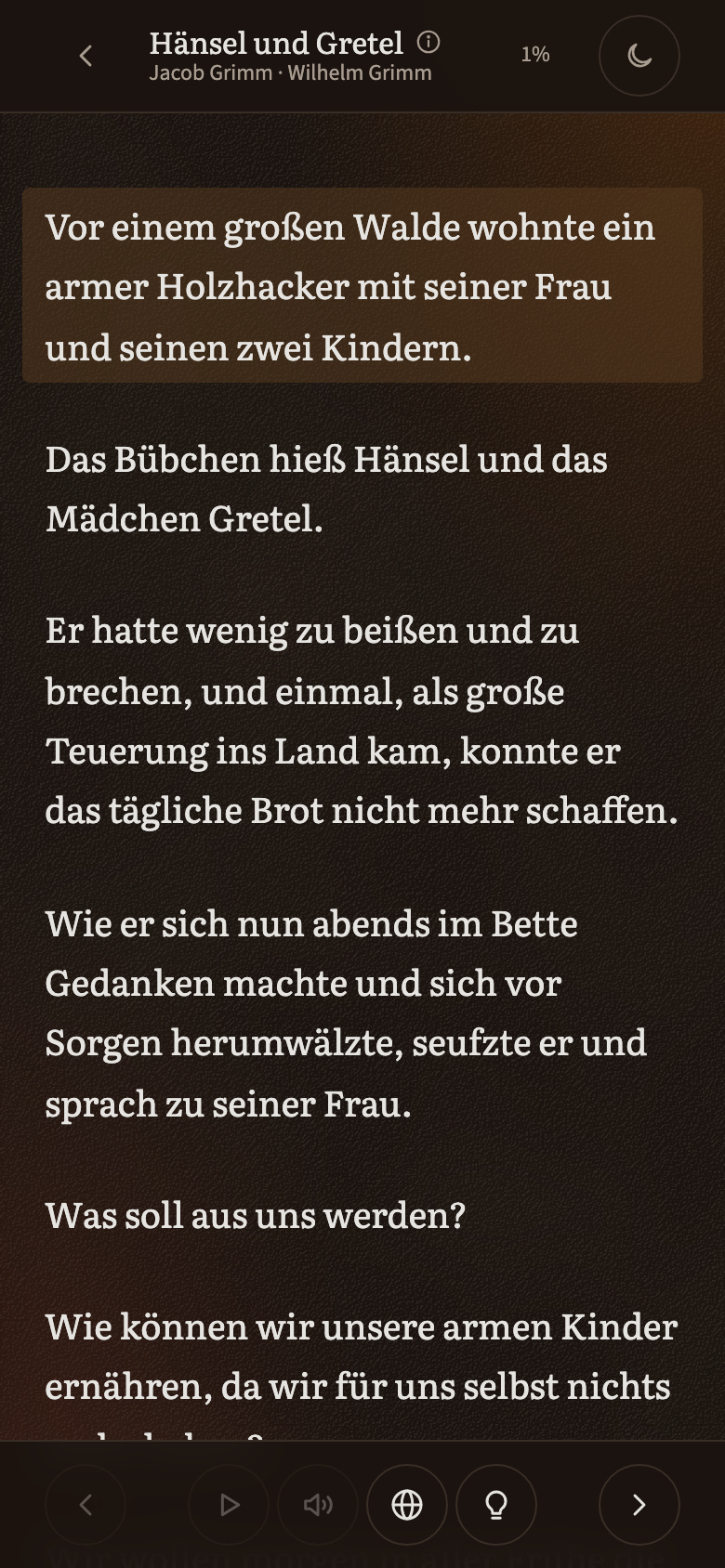
The page is the book’s own text, and the sentence you are on is tinted. Tap past the end of a sentence, or use the arrows at the bottom, to move on; the slider in the header jumps anywhere in the book. Your place is saved as you go.
Nothing is hidden and nothing is simplified. Read at whatever pace the text allows.
- Step 5
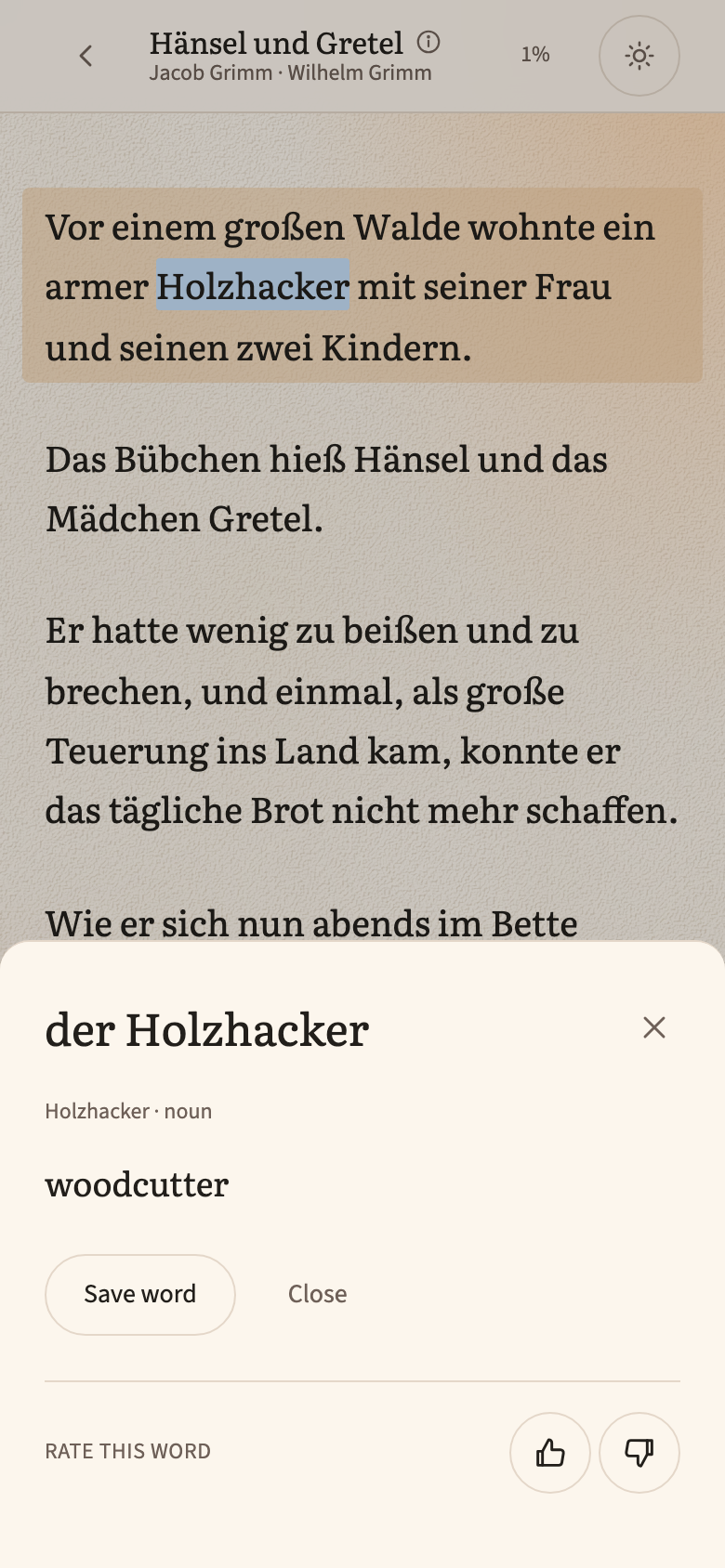
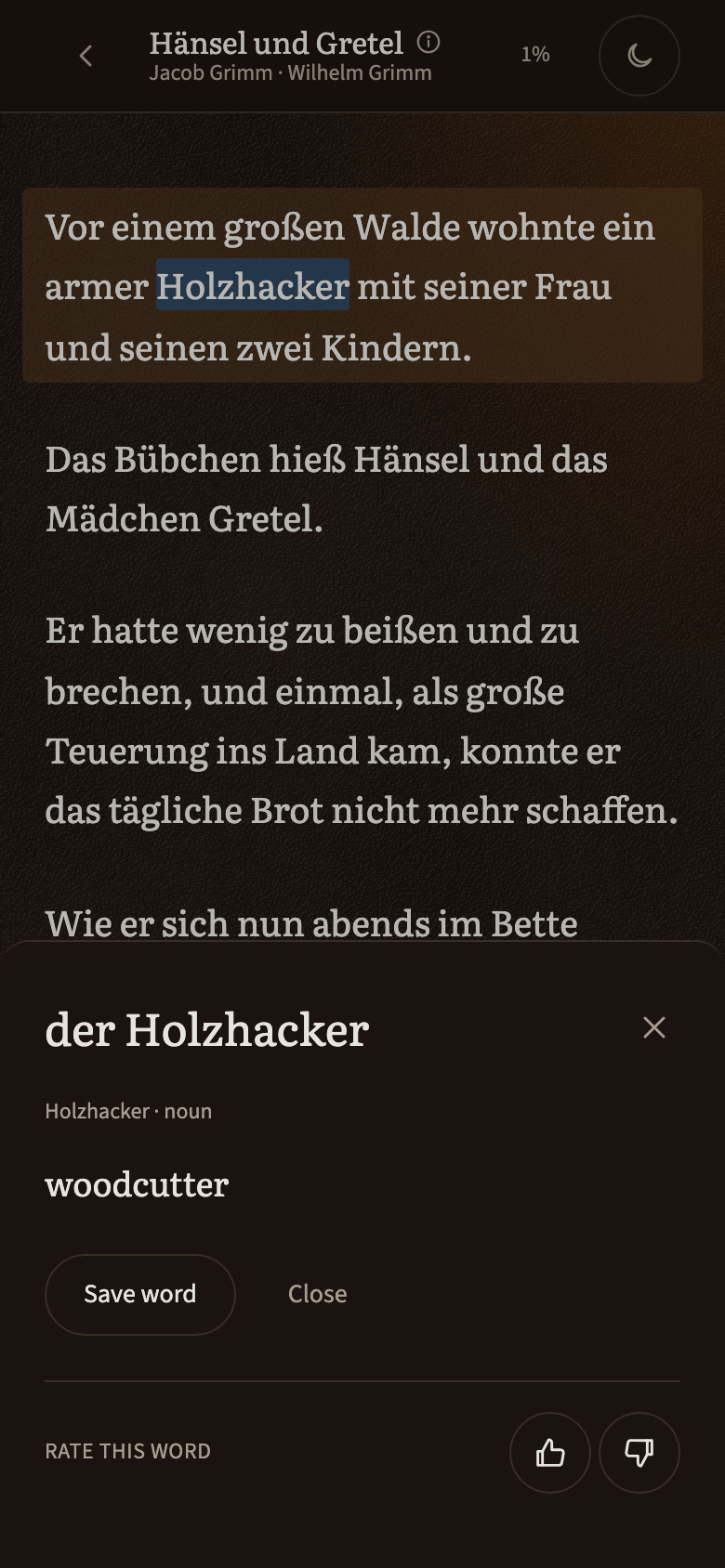
Tap any word
Tap a word and a card opens with what it means here, in this sentence, not the first dictionary entry. Save it with one tap, and it is tinted in the text from then on: red while you are learning it, green once you know it.
Every card can be rated with a thumb up or down. The ratings are how the explanations get better.
- Step 6
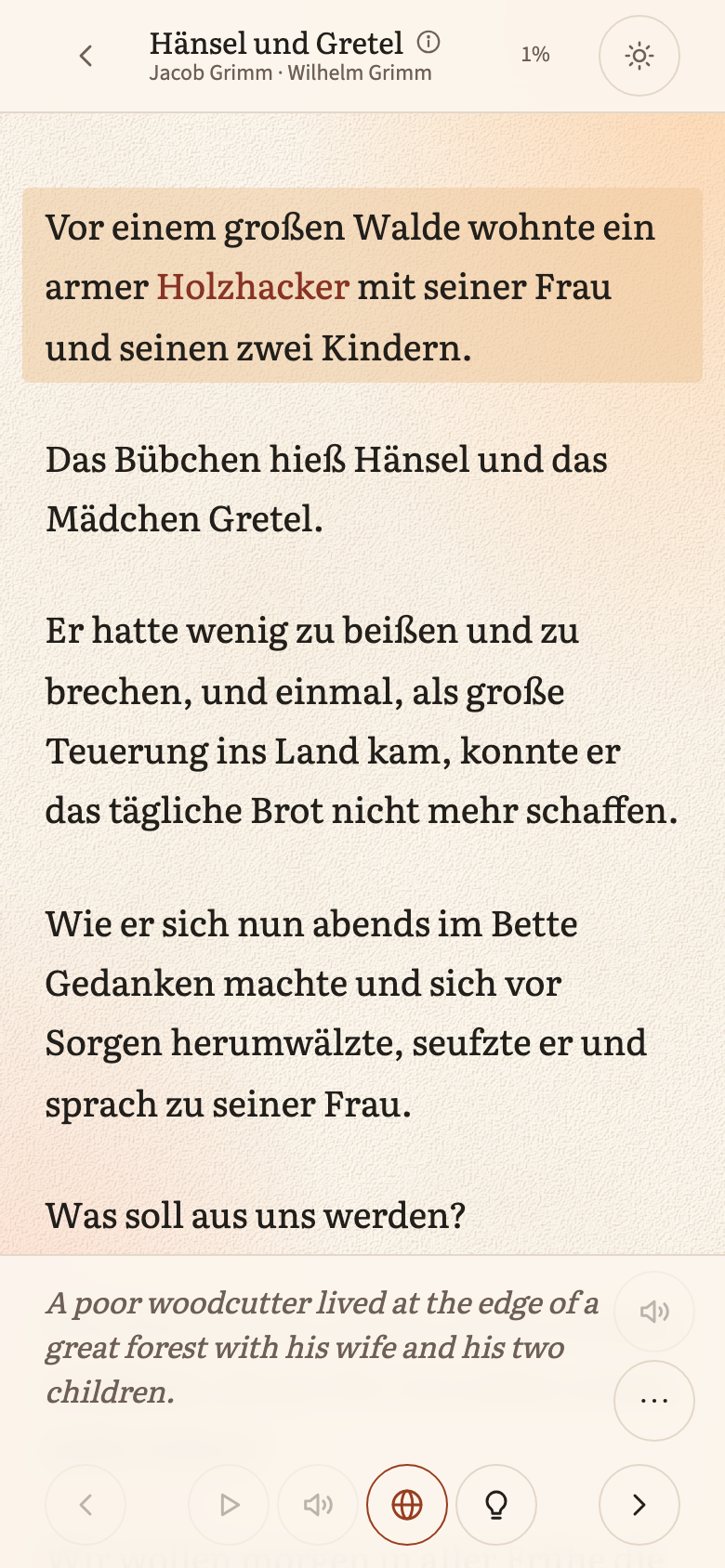
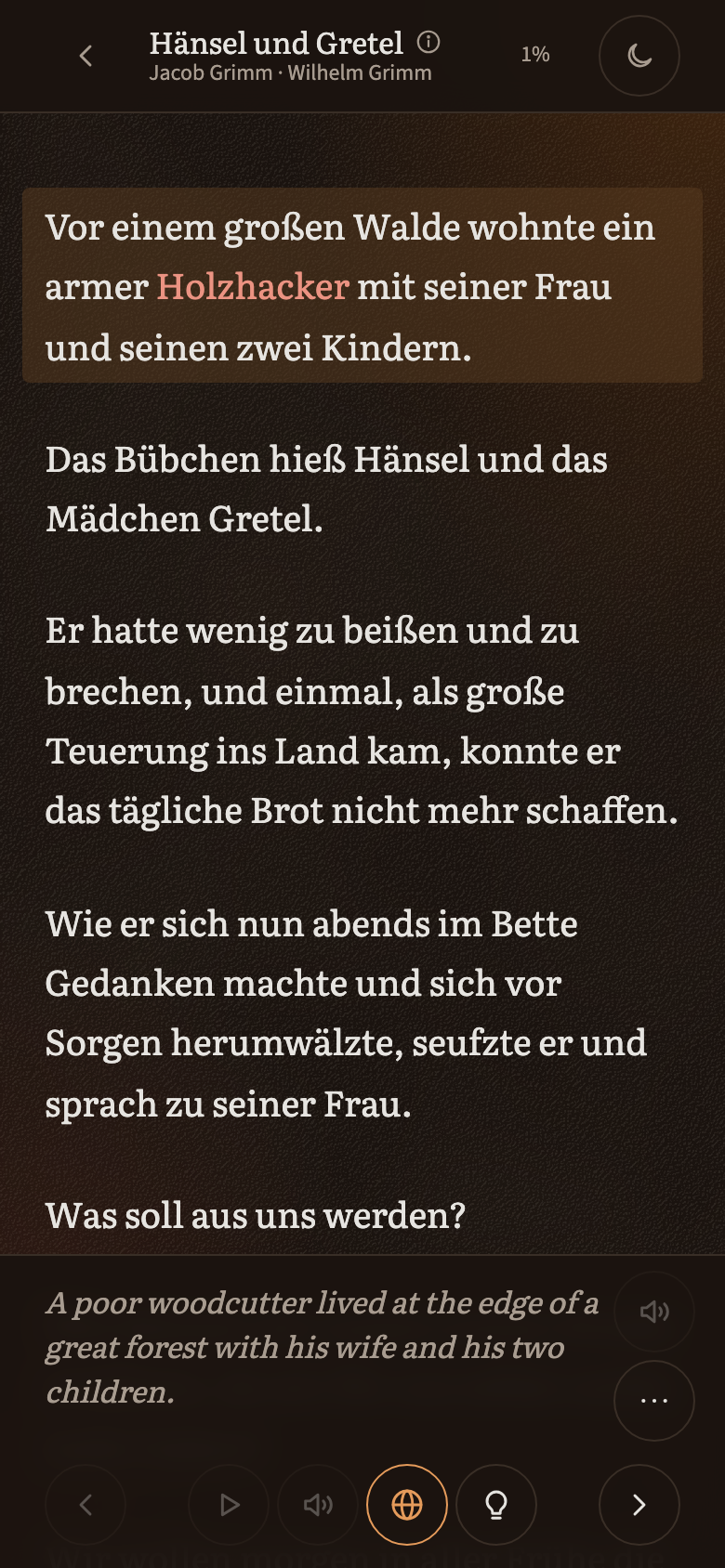
Check the translation, and listen
The globe shows the translation beneath the sentence, and shows it again with a tap, so you can try the sentence first and check yourself after.
The speaker reads the sentence aloud with a native voice, and the play button walks the book for you, sentence after sentence, reading each translation too if you have it showing. The opening of every book is recorded today; more is recorded as readers go further.
- Step 7
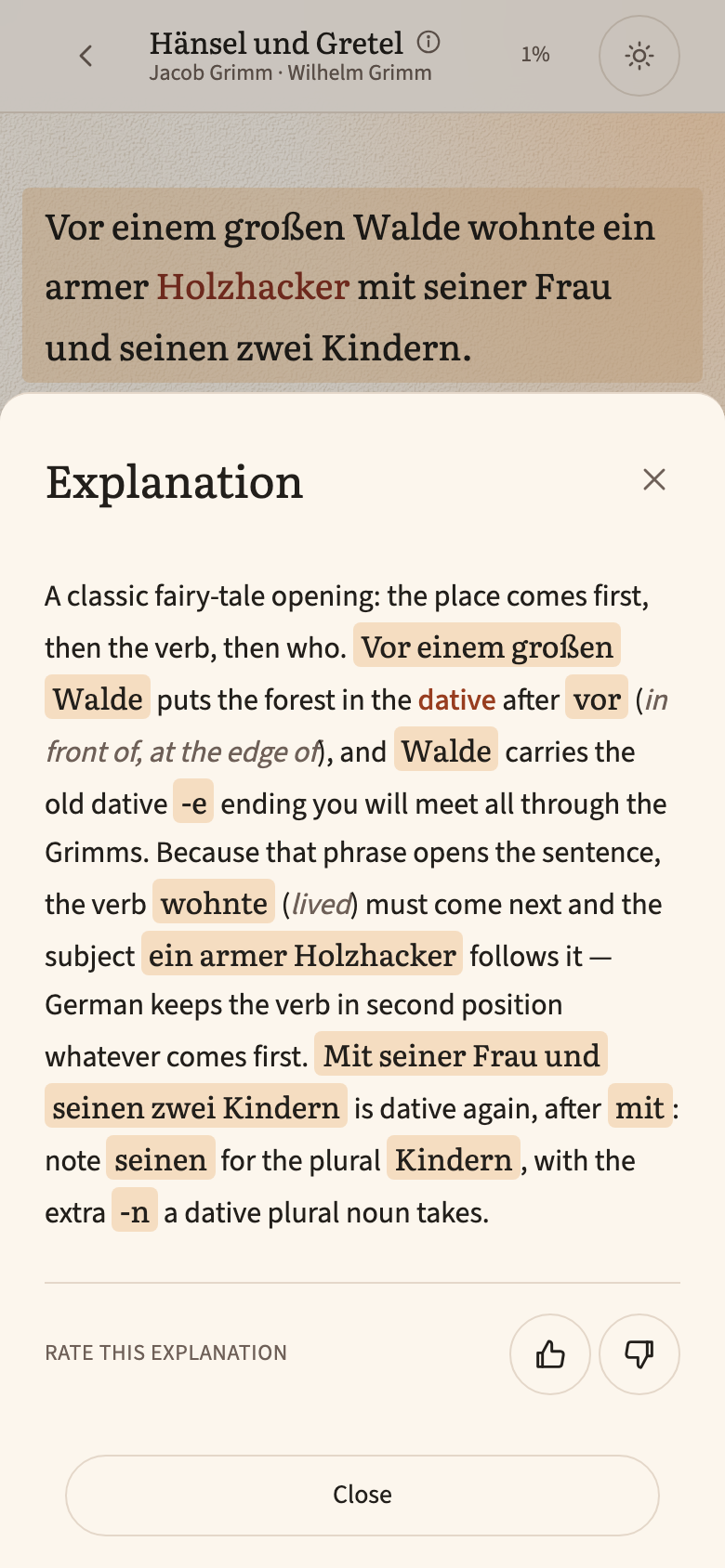
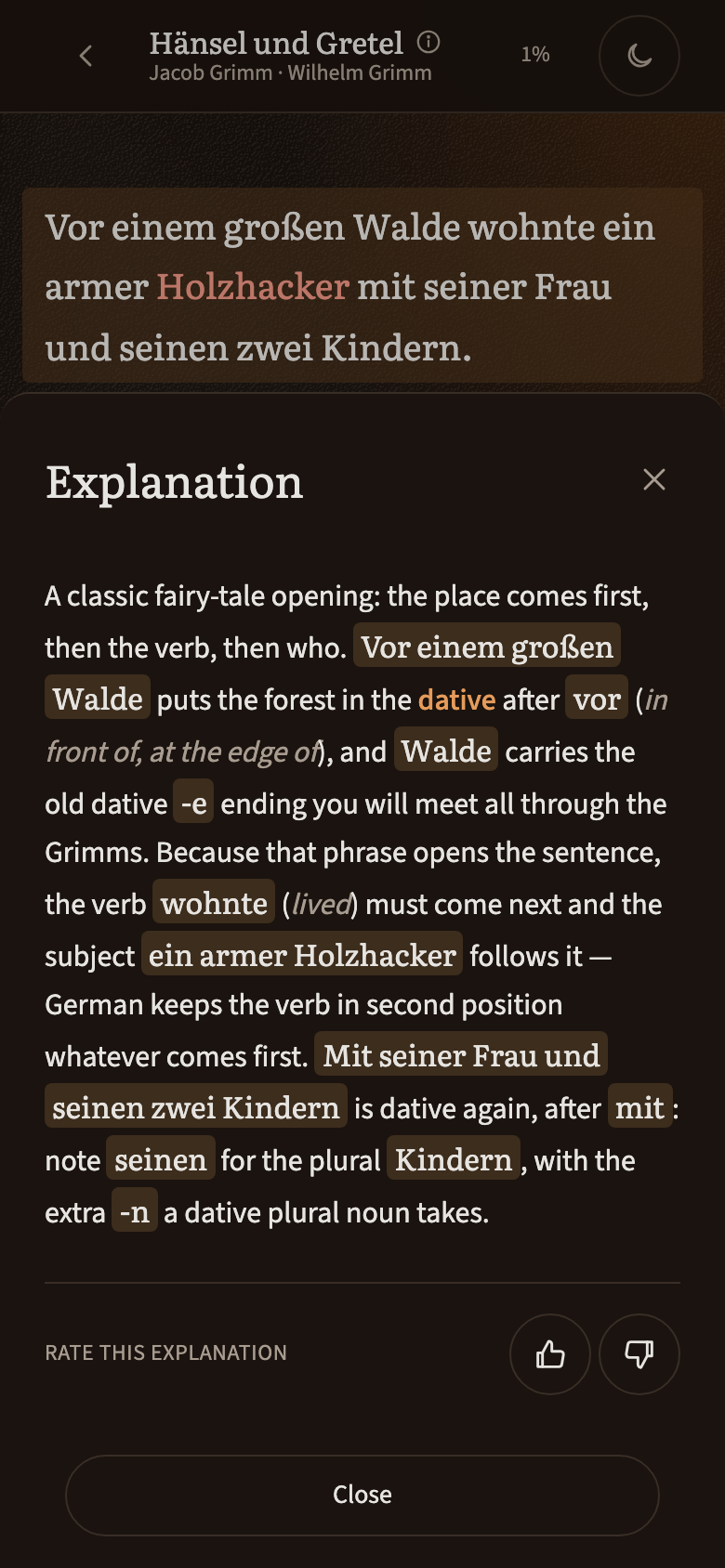
Ask for the grammar
The bulb opens a short explanation of whatever the sentence is doing: the case, the tense, the idiom, the word order. It is written for the sentence in front of you, not copied from a grammar book, and it quotes the words it is talking about so you can find them.
- Step 8
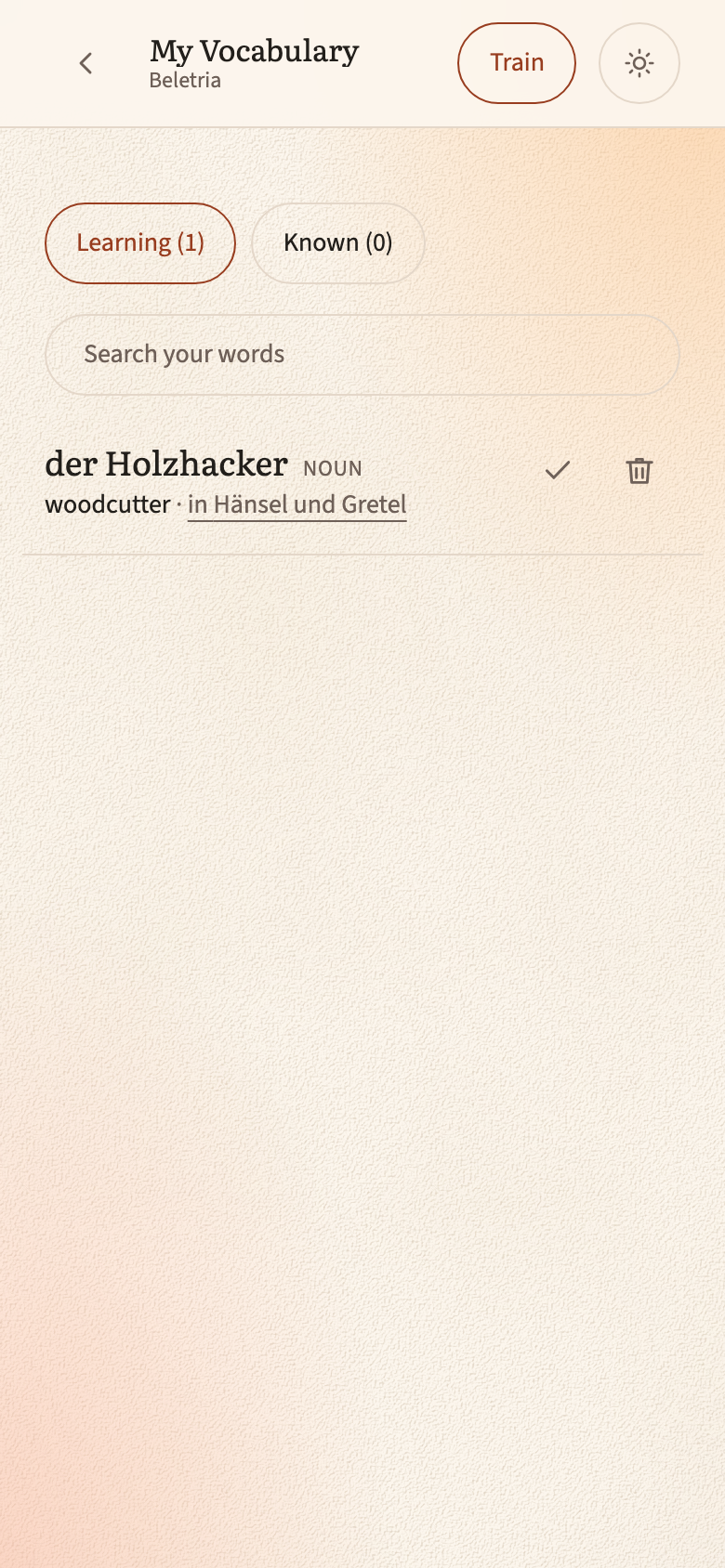
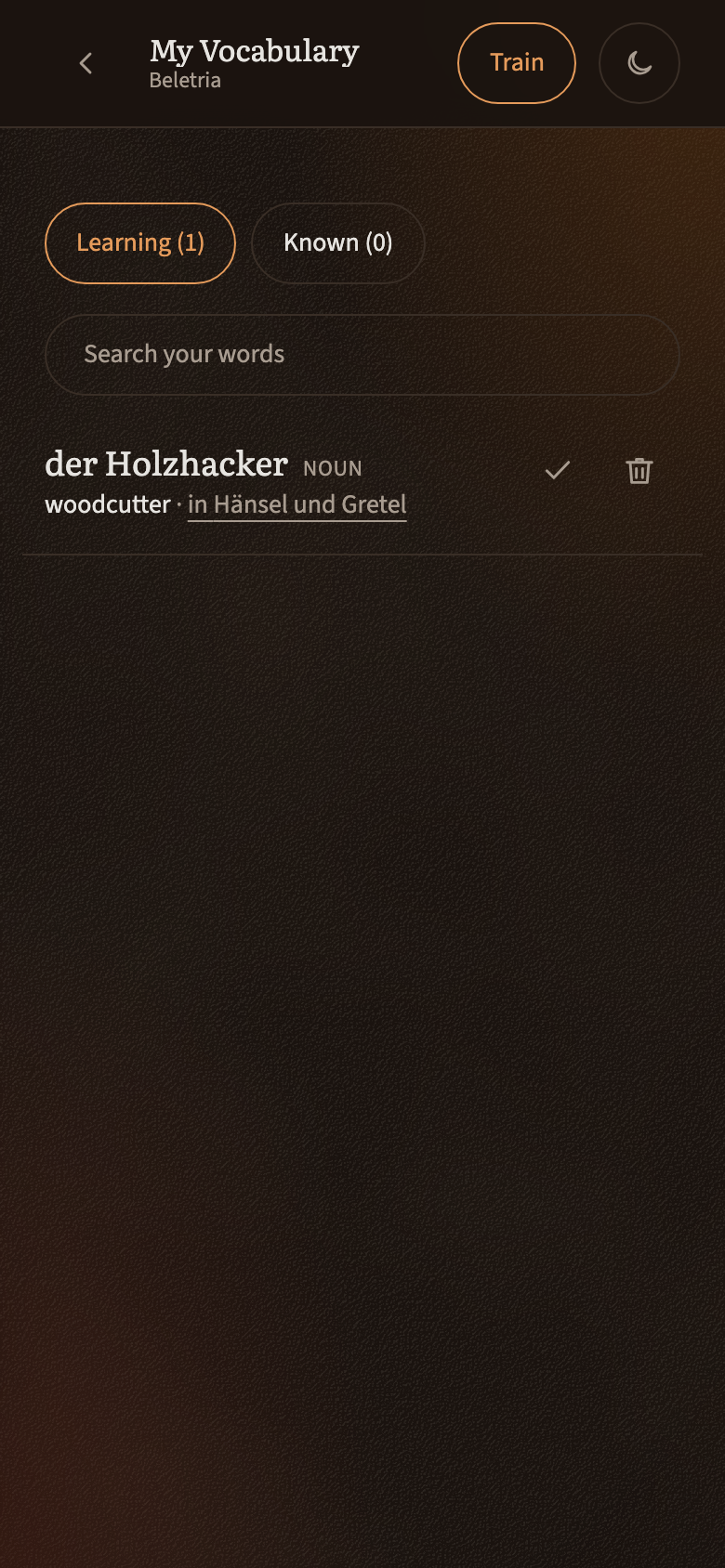
Review your words
Your saved words live in one place, each with the book and sentence you found it in, so you can jump back to the context. Search them, mark the ones you know with a tick, and train the rest with flip cards, rating how sure you were.
Words you know count towards the share of each book you can already read, so the shelf learns with you.
That is all of it
The rest is reading. Pick a short book first; a fairy tale is a hundred sentences and a real, complete story.
Open the app